
Introduction
What is a Virtual Cloud Network (VCN)?
A Virtual Cloud Network (VCN) in Oracle Cloud Infrastructure is a private, software-defined network where you deploy cloud resources such as:
- Compute instances
- Load balancers
- Databases
- Kubernetes clusters
A VCN is isolated by default and gives you full control over:
- IP address ranges
- Subnets
- Routing
- Gateways
- Security rules
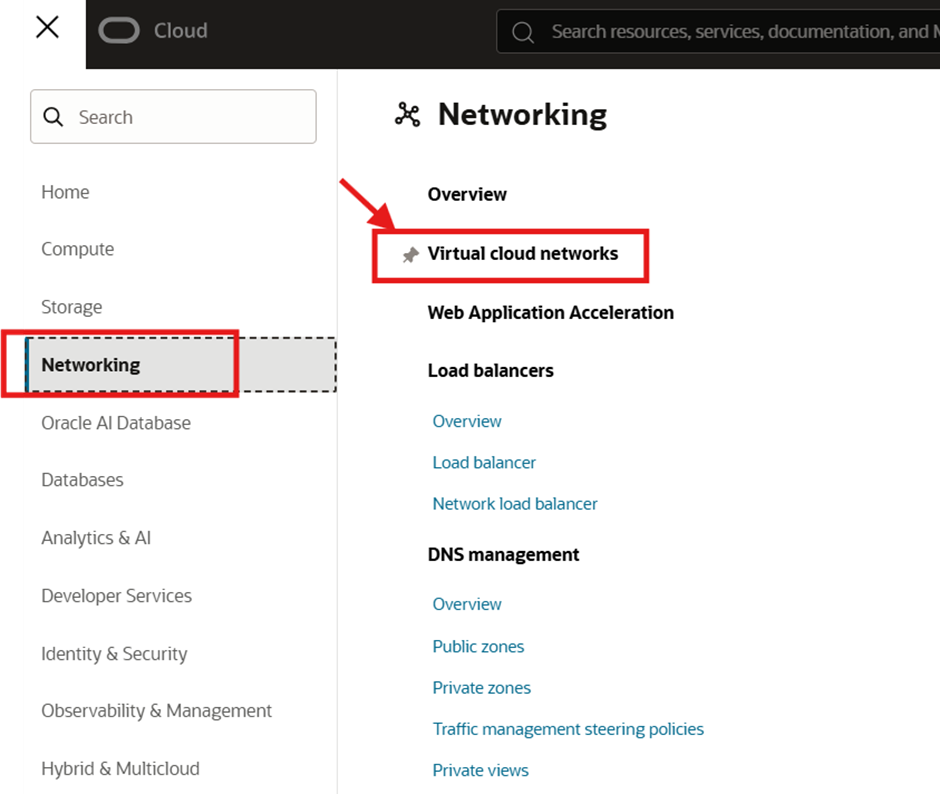
Networking Navigation in OCI Console
To create and manage VCNs:
OCI Console → Networking → Virtual Cloud Networks
RFC 1918 – Private IP Addressing
What is RFC 1918?
RFC 1918 is a global standard that defines private IP address ranges reserved for internal networks. It gives predefined IPs series, so people can use these IP’s.
These IPs:
- Are not routable on the internet
- Are free to use
- Are designed for internal/private networking
- Any organization can use these IPs without coordination.
Use Mxtoolbox Subnet calculator for detailed information.
https://mxtoolbox.com/SubnetCalculator.aspx
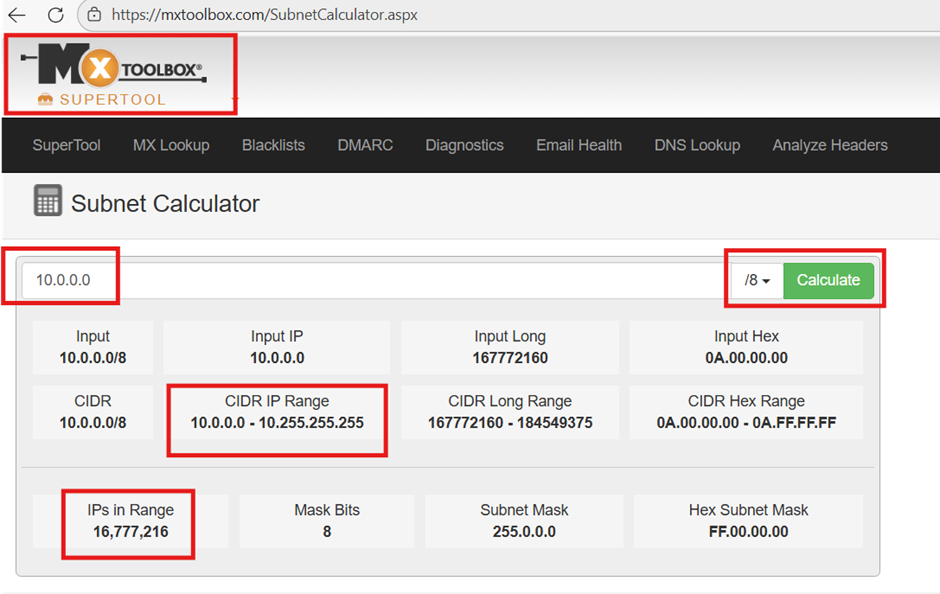
RFC 1918 Private IP Ranges
10.0.0.0/8 – Large Networks Range: 10.0.0.0 – 10.255.255.255 CIDR: /8 Total IPs: 16,777,216
Best for: Large enterprises, cloud-first designs
172.16.0.0/12 – Medium Networks
Range: 172.16.0.0 – 172.31.255.255 CIDR: /12 Total IPs: ~1,048,576
Best for: Medium environments
192.168.0.0/16 – Small Networks
Range: 192.168.0.0 – 192.168.255.255 CIDR: /16 Total IPs: ~65,536
Best for: Labs, small workloads
Capacity Planning – Best Practice
Ask the Client First , Before deciding CIDR size:
- Number of servers
- Load balancers
- Databases
- Kubernetes nodes
- Future expansion plans
- Add Buffer
Add ~40% buffer for:
- Scaling
- DR
- Future services
Example: If client needs 1,000 IPs → plan for 1,400+ IPs
Private IP vs Public IP
Private IP (RFC 1918)
10.0.0.0/24 10.0.1.0/24
Even though these look like normal IPs, they are PRIVATE, not public.
Public IPs:
- Are assigned by OCI
- Are internet-routable
- Are used only when explicitly required
What does CIDR mean?
CIDR = Classless Inter-Domain Routing
- CIDR = size of land
- VCN = entire apartment building
- Subnet = each floor
- IP address = flat number
It tells:
- Which IPs belong to the network
- How many IP addresses are available
OCI Networking: VCN Gateways
Prerequisites:
- Created a compartment for networking (example: Network-Comp).
- Must have permissions to create networking resources:
VCN, Subnet, Internet Gateway, NAT Gateway, Route Tables (usually via IAM policy).
Step 1 — Navigate to VCN Section
Networking → Virtual cloud networks
Always create networking resources in a dedicated compartment (like Network-Comp) to simplify access control, auditing, and billing.
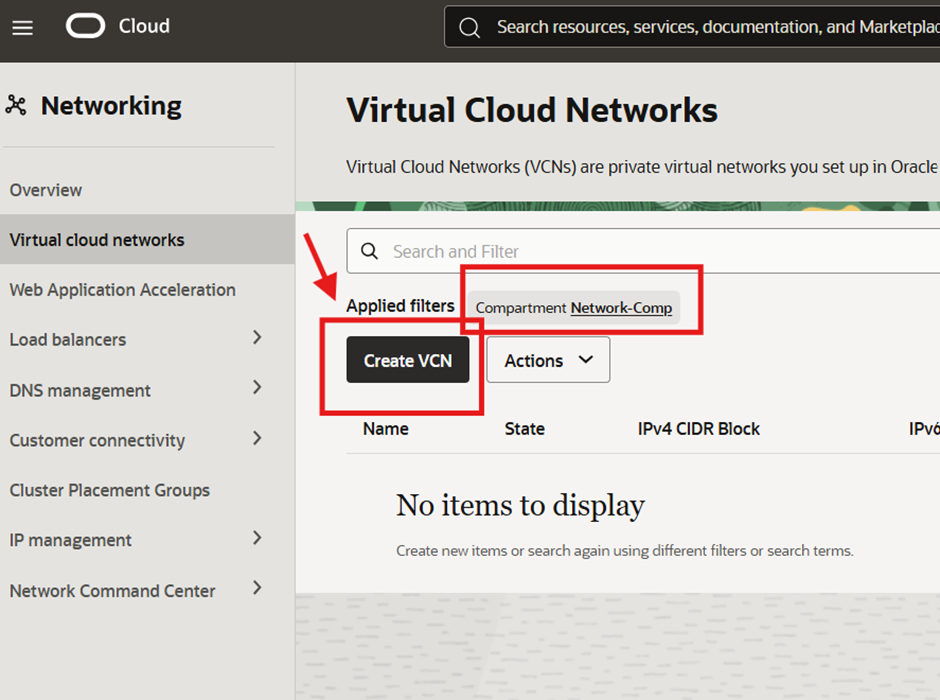
Step 2 — Select the Correct Compartment & Click “Create VCN”
Confirm Compartment = Network-Comp Click Create VCN
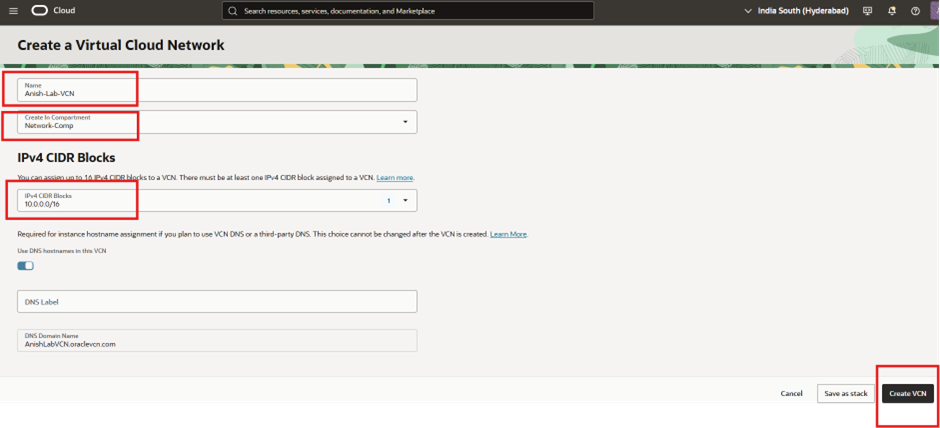
Step 3 — Create the VCN (Name + IPv4 CIDR)
- Name: Anish-Lab-VCN
- Create in Compartment: Network-Comp
- IPv4 CIDR Block: 10.0.0.0/16
- Click Create VCN
10.0.0.0/16 gives 65,536 total IPs (usable will be slightly less due to OCI reserved addresses in each subnet). Choose CIDR based on capacity planning (inventory + buffer). CIDR cannot be easily changed later; increasing network size usually requires redesign.
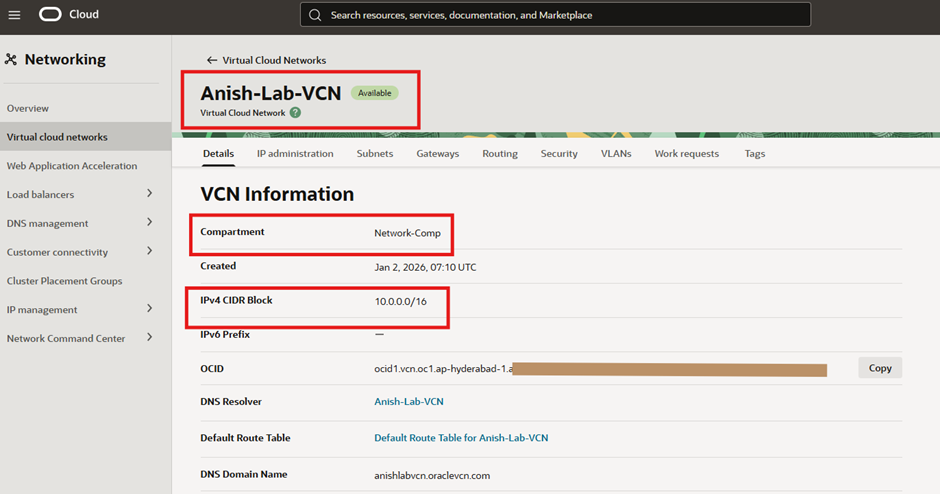
Step 4 — Validate VCN Creation
Capture the VCN OCID if you plan to automate (Terraform/CLI) later. By default, OCI also creates some default networking components:
Default route table Default security list Default DHCP options
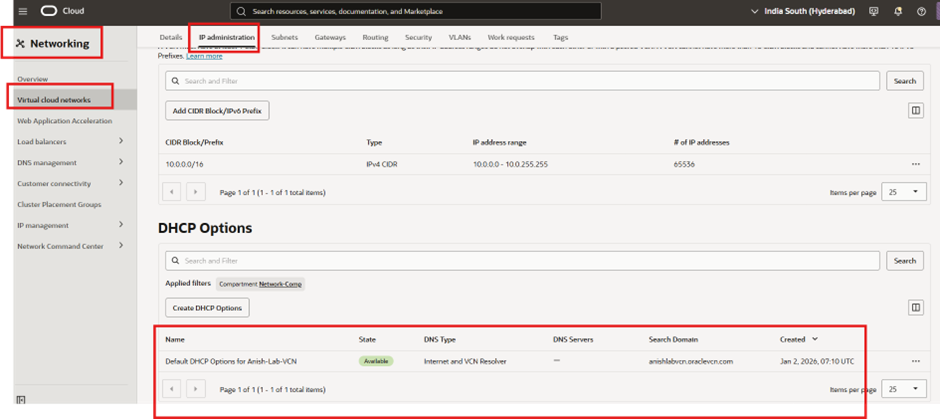
Step 5 — Understand DHCP Options (Default Created)
DHCP Options = centralized network configuration for instances
DHCP Options in OCI define:
- DNS server settings (VCN resolver or custom)
- Search domain (example: *.oraclevcn.com)
- Domain name used for hostname resolution
DHCP Options in OCI define which DNS server and domain name an instance uses, and they apply to the entire VCN.
Why this matters:
- Your instances automatically receive DNS settings via DHCP.
- You don’t need manual /etc/resolv.conf edits for every VM.
DHCP Options are VCN-wide but are associated to subnets, meaning different subnets can use different DHCP options if needed.
VCN └── DHCP Options └── Subnets └── Instances
When a VM starts, it needs answers to questions like:
- What DNS server should I use?
- What domain name should I belong to?
- How do I resolve hostnames?
Instead of configuring this manually on every VM, OCI DHCP Options automatically provide these settings.
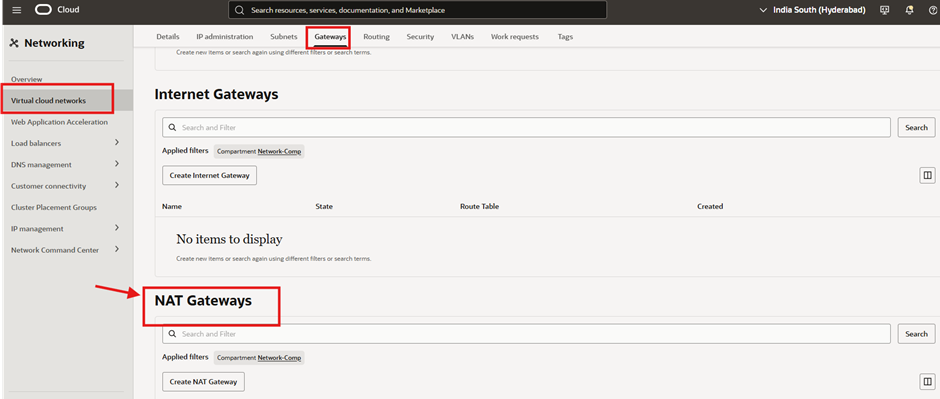
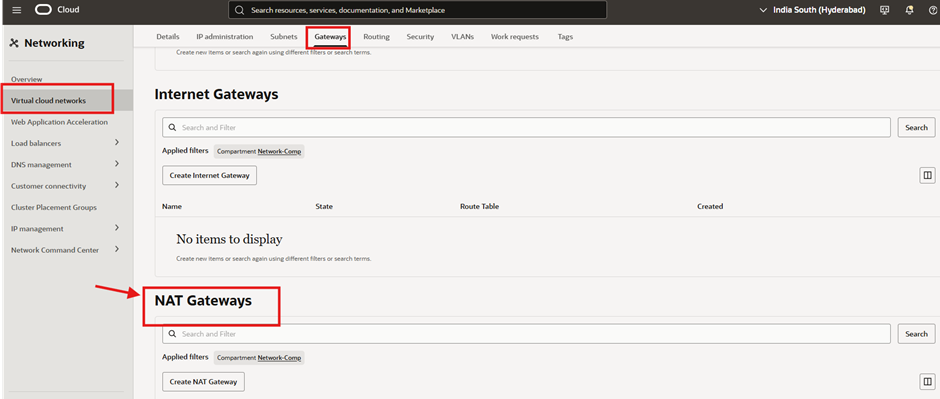
Step 6 — Create Gateways (Before Creating Subnets)
Prepare outbound/inbound connectivity options. In OCI, gateways define how traffic leaves/enters your VCN:
- Internet Gateway (IGW): for public internet access
- NAT Gateway: for private subnet outbound internet access (no inbound)
Standard:
Create gateways first, then route tables, then subnets.
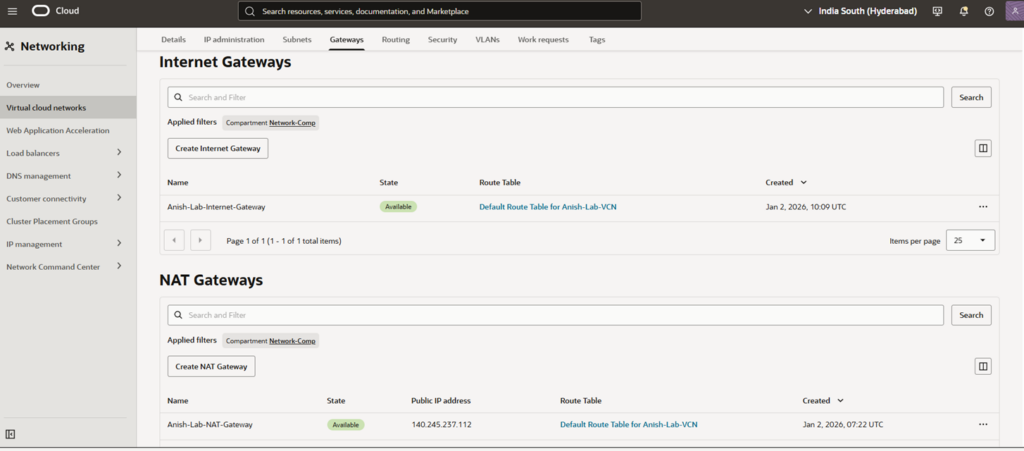
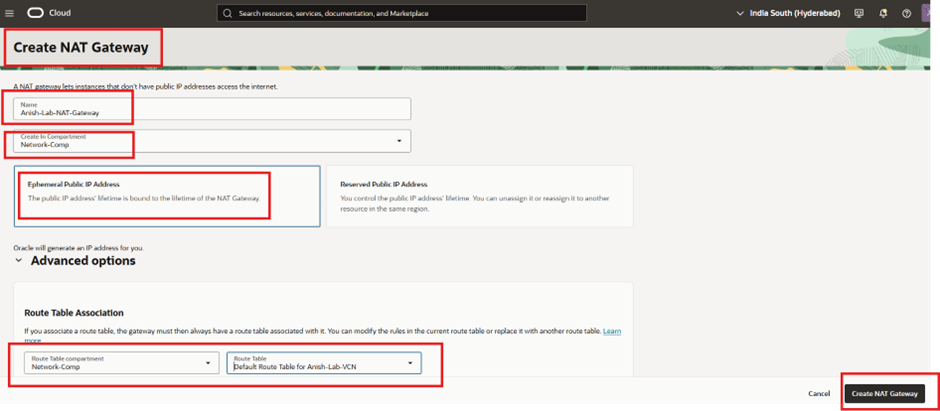
Step 7 — Create NAT Gateway (For Private Subnet Outbound Internet)
Allow private resources to access internet without public IP (patching, yum/apt updates, package downloads).
- Name: Anish-Lab-NAT-Gateway
- Compartment: Network-Comp
- Public IP Address: Ephemeral Public IP Address
- Route Table Association: Default Route Table for Anish-Lab-VCN
- Click Create NAT Gateway
- NAT gateway provides outbound-only access.
- Private instances remain private; they are not reachable from internet.
- Ephemeral public IP stays valid as long as NAT Gateway exists.
Step 8 — Create Internet Gateway (For Public Subnet)
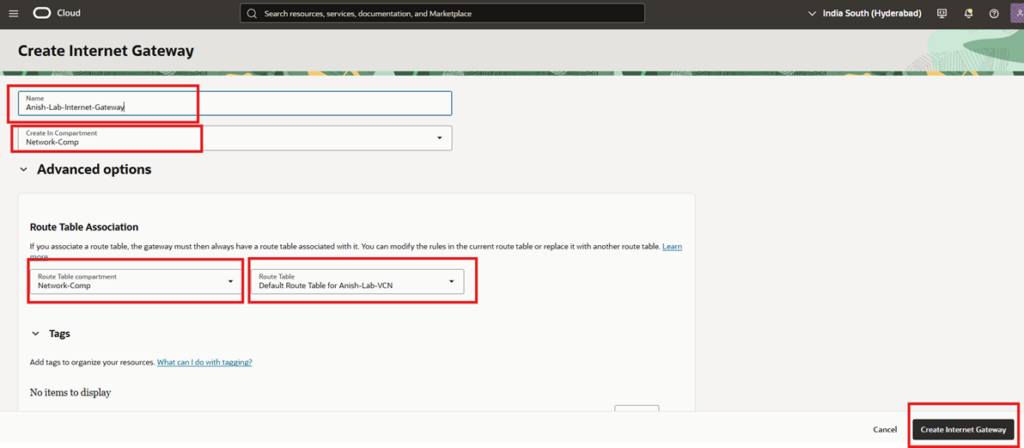
- Enable direct public internet connectivity.
- Name: Anish-Lab-Internet-Gateway
- Compartment: Network-Comp
- Route Table Association: Default Route Table for Anish-Lab-VCN
- Click Create Internet Gateway
- IGW enables inbound/outbound connectivity, but only if subnet + routing + security rules allow it.
Having IGW alone does not make instances public; you also need:
- Public subnet
- Route rule to IGW
- Public IP on instance
- Security list/NSG allowing inbound
Step 9 — Confirm Gateways Are Created Successfully
Validate IGW and NAT Gateway availability. State: Available Check Gateways listed under correct compartment NAT Gateway shows assigned public IP