

Introduction:
In complex cloud environments, understanding how network components interact is critical for ensuring connectivity, security, and performance. Within Oracle Cloud Infrastructure (OCI), resources like Virtual Cloud Networks (VCNs), subnets, gateways, and security rules often form multi-layered architectures that are not always easy to interpret through configurations alone.
To address this challenge, OCI provides two powerful tools- Network Visualizer and Network Path Analyzer that bring clarity and control to cloud networking.
Network Visualizer enables users to see a graphical representation of their network topology. It transforms complex configurations into an intuitive visual layout, helping teams quickly understand how components are connected and identify potential misconfigurations.
Network Path Analyzer, on the other hand, is designed for deep troubleshooting. It allows you to simulate traffic between a source and destination and provides a detailed analysis of whether the connection will succeed or fail and why.
In this blog, we will not only explore these tools conceptually but also walk through step-by-step screenshots to demonstrate how they work in real OCI environments.
Network Visualizer:
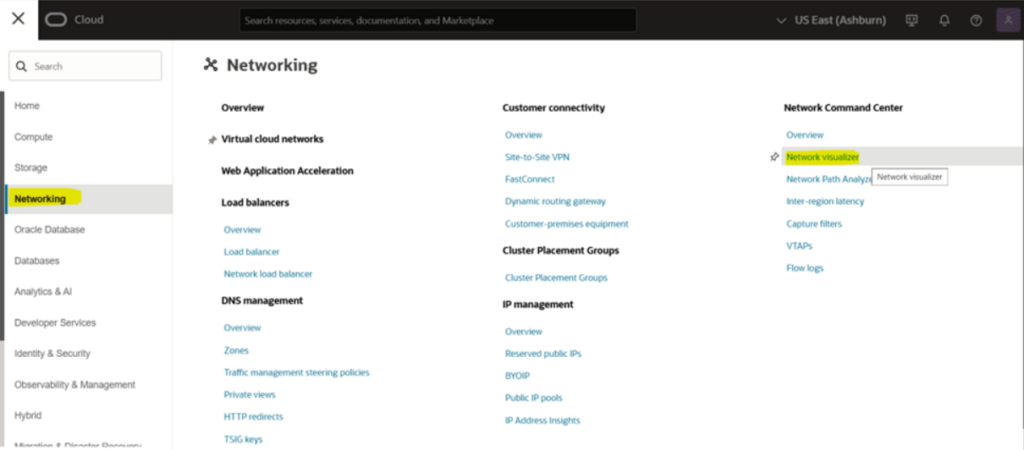
Step 1: Click on the Burger Menu in left side, select Networking than go to the Network visualizer
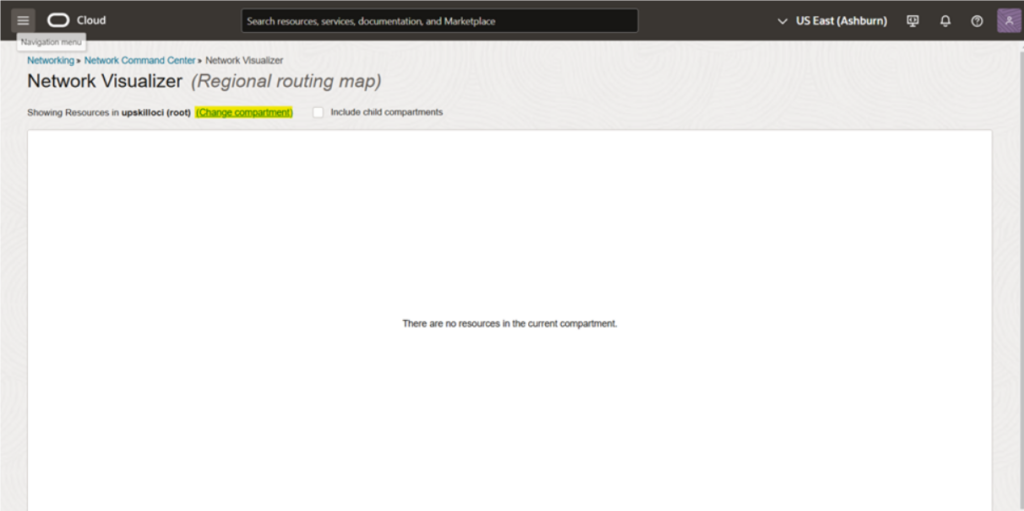
Step 2: Select Compartment
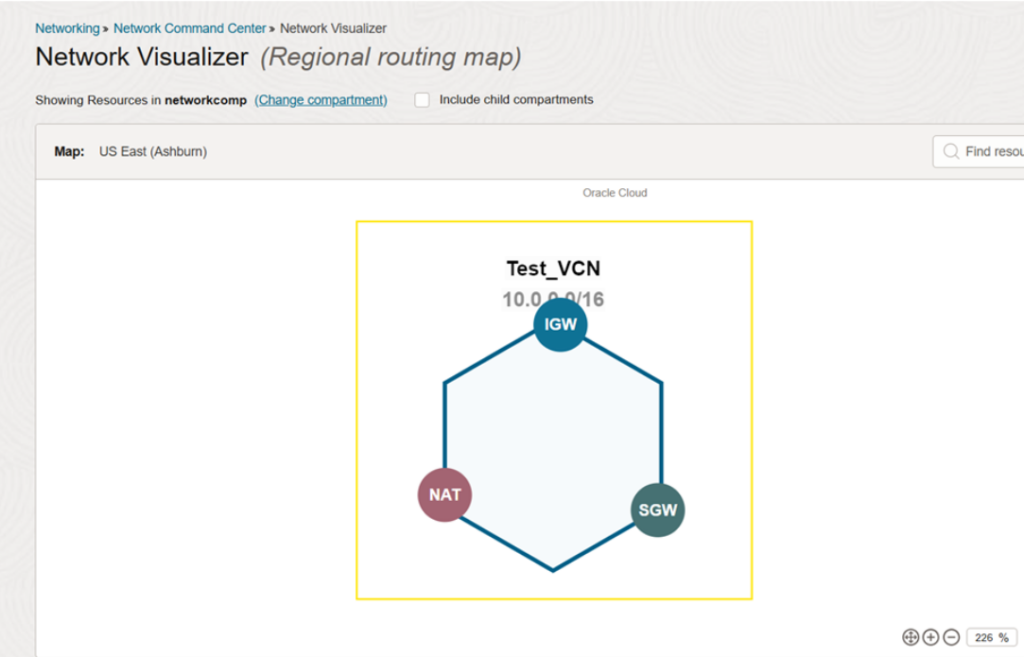
and we can see the available networks in our VCN
Network Path Analyzer:
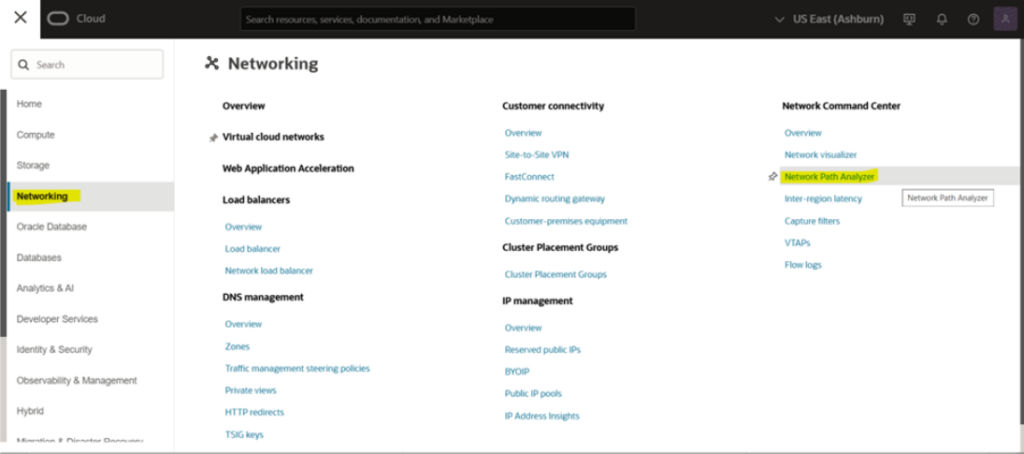
Step 1: Click on the Burger Menu in left side, select Networking than go to the Network Path Analyzer
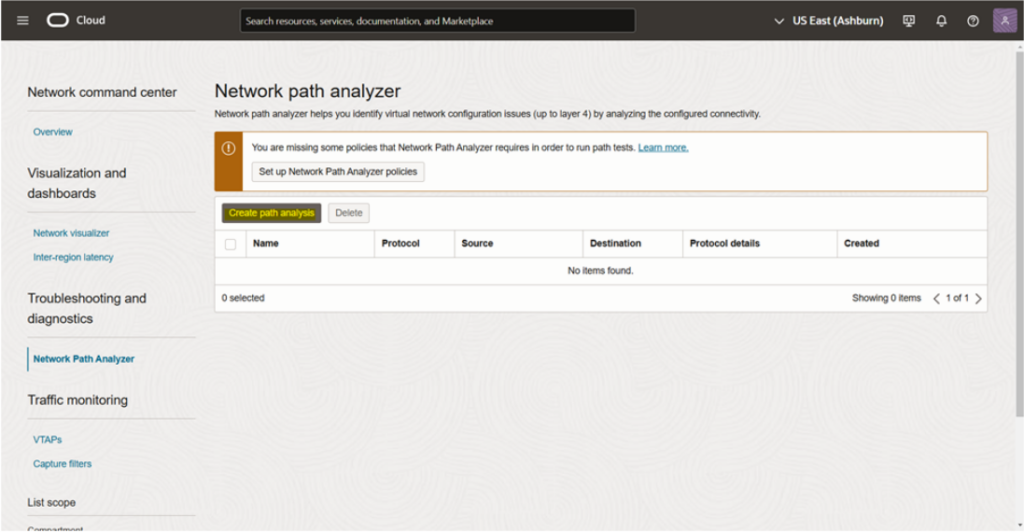
Step 2: Click on create path analysis
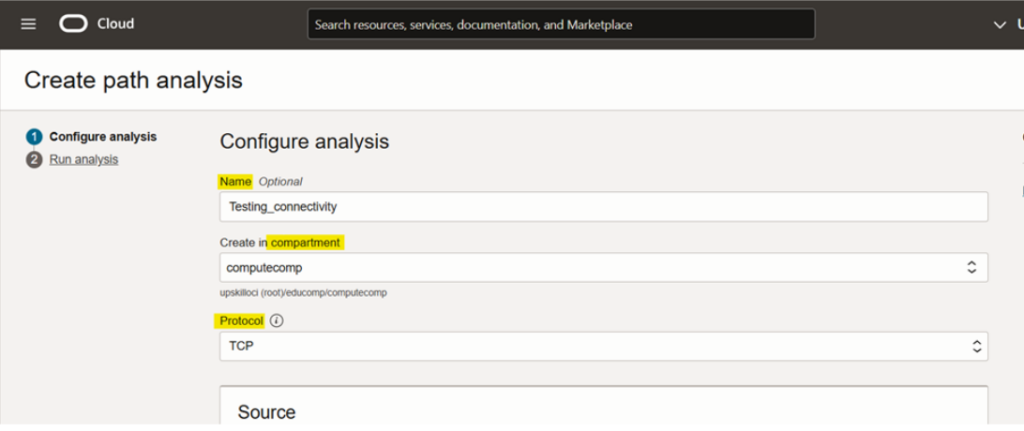
Step 3: write name, select Compartment and protocol
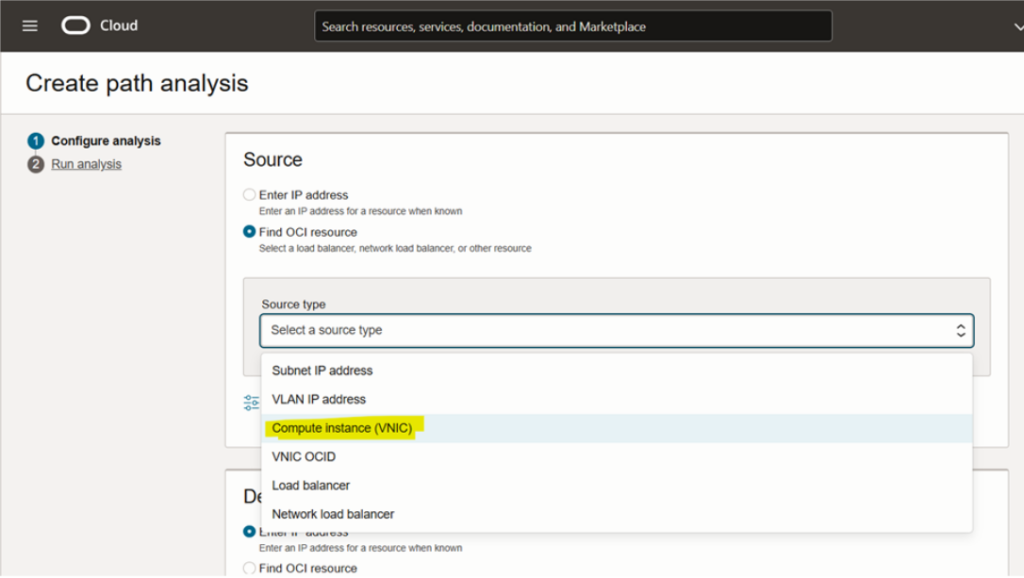
Step 4: Select Source type in source
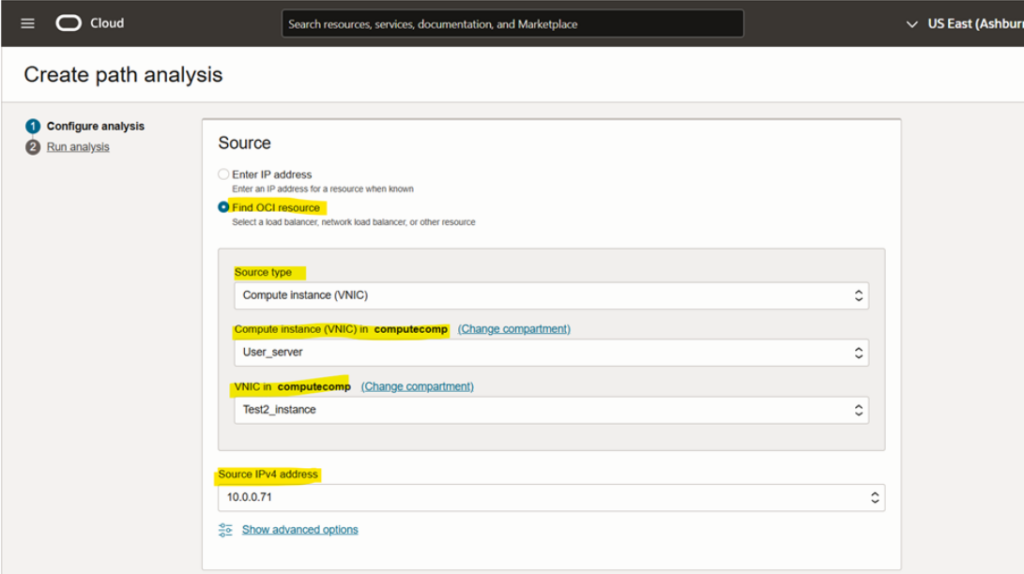
Step 5: Select compute instance, VNIC & source IP address
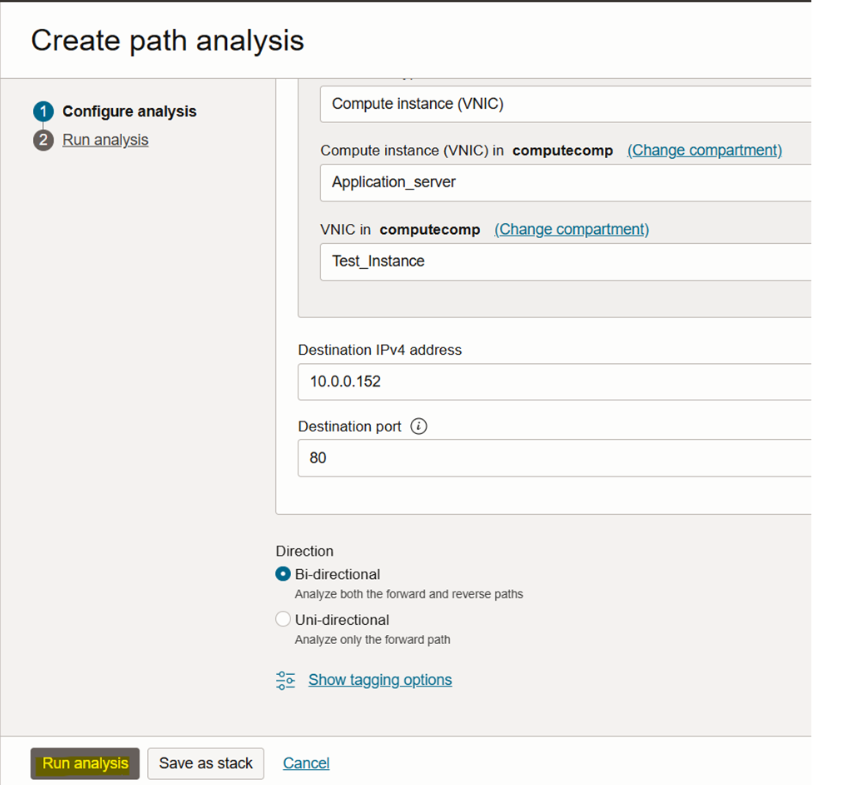
Step 6: Now, select Destination type in Destination,compute instance, VNIC,Destination IP address & Destination port
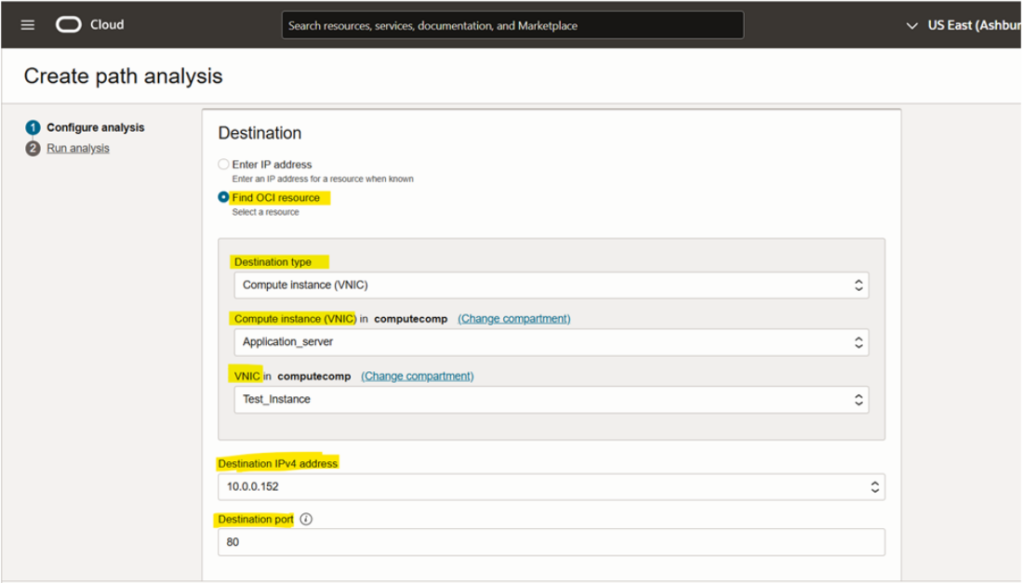
Select Direction of analysis
Step 7: And Run Analysis
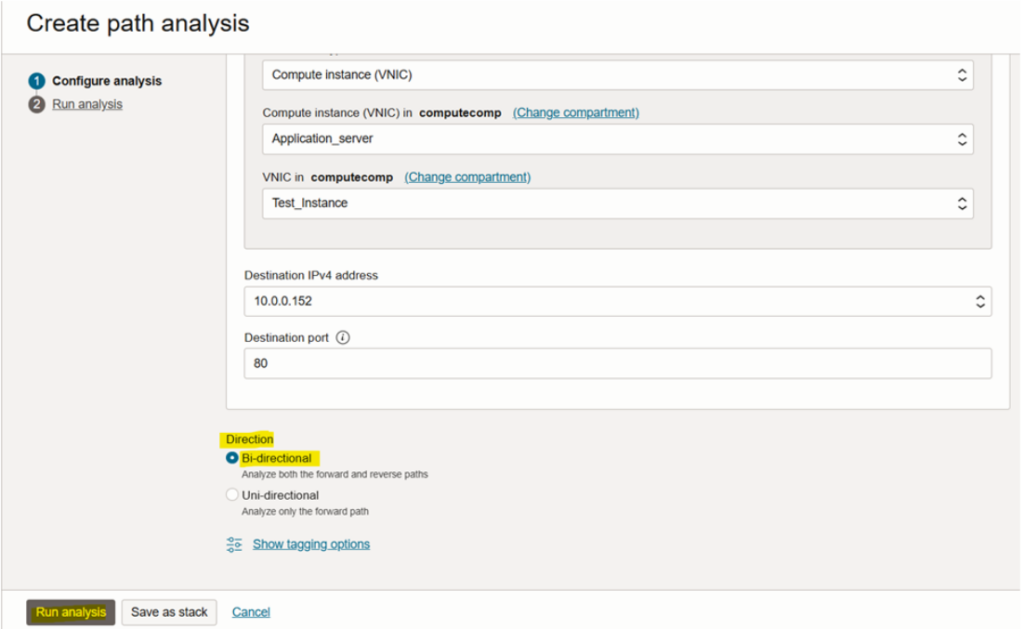
In the screen below,
we can see that the analysis is incomplete and has failed
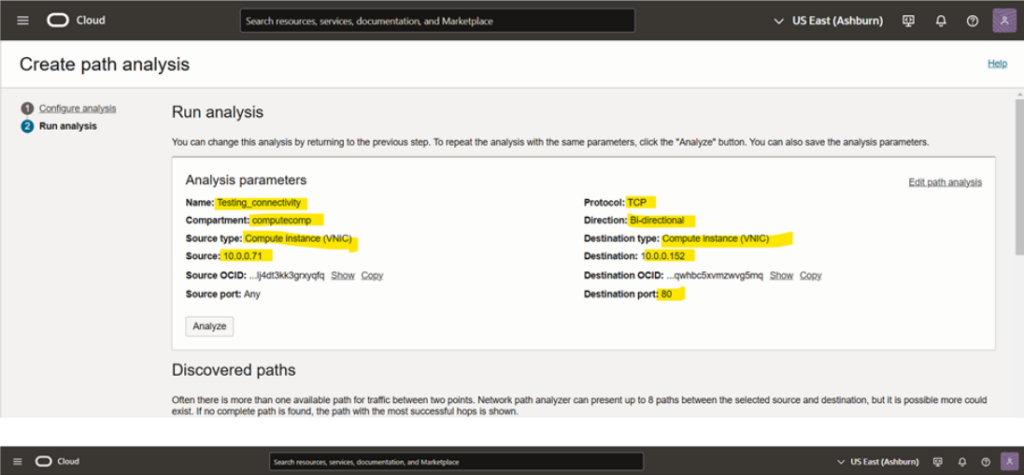
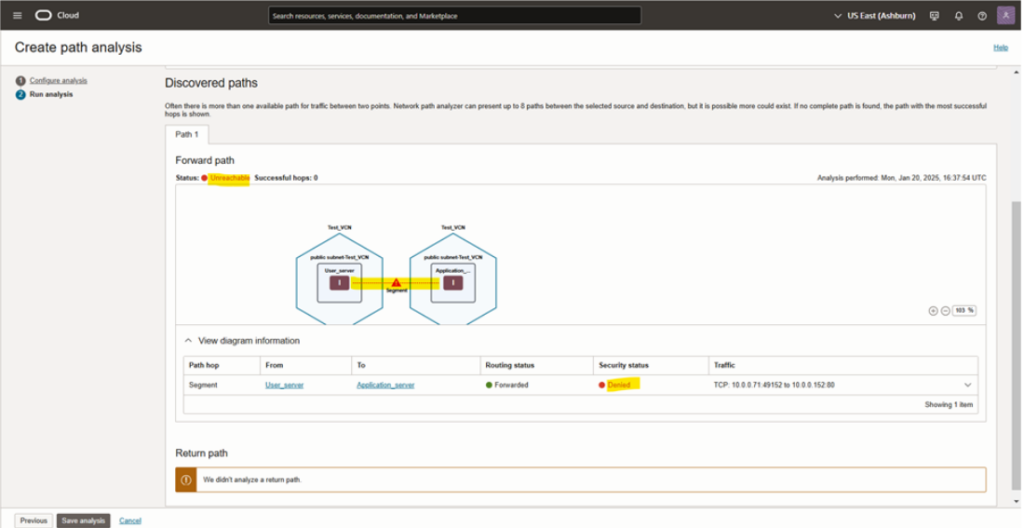
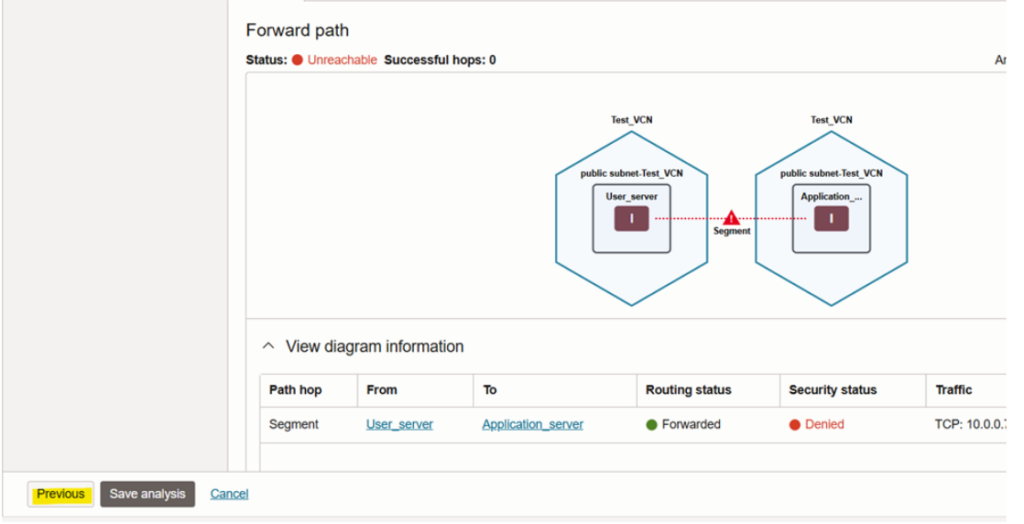
As we can see, we don’t have a policy in place to gain access to the network path analyzer.
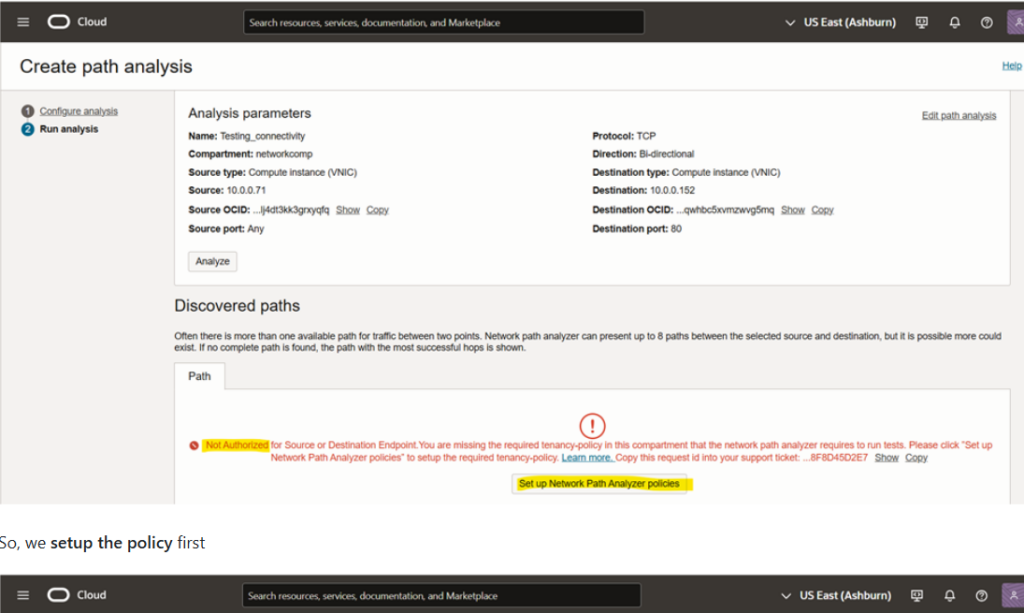
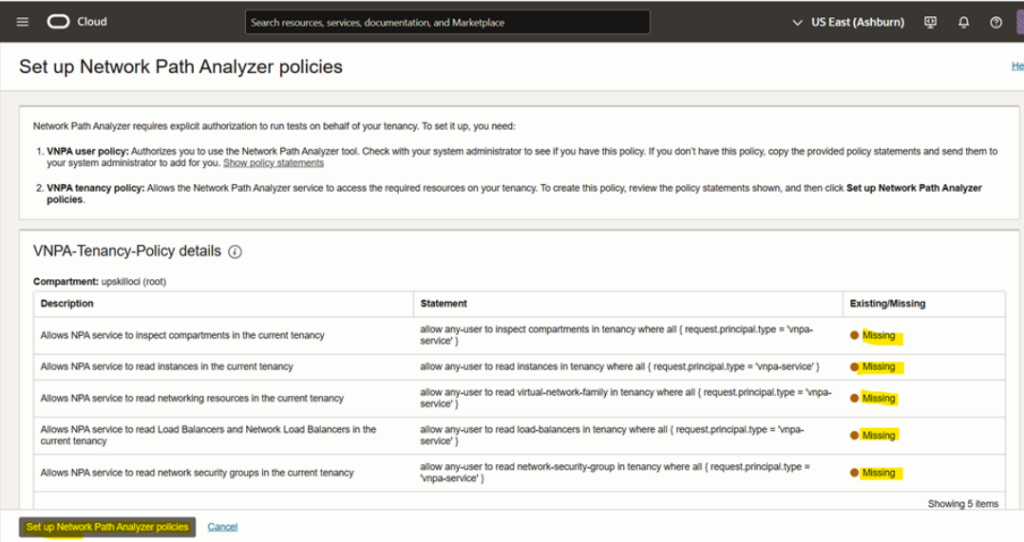
Step 8: So, we setup the policy first
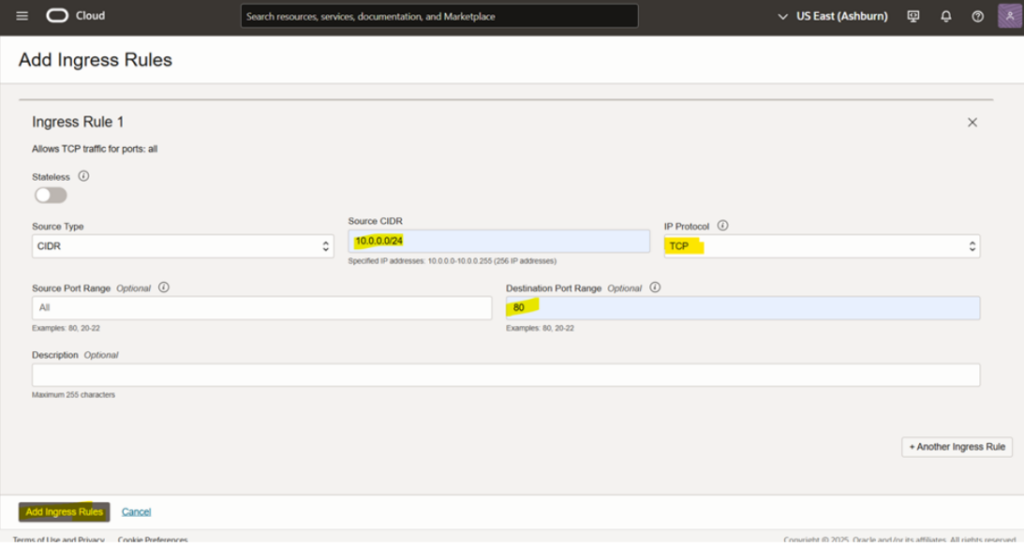
Step 9: And also add a ingress rule in application user
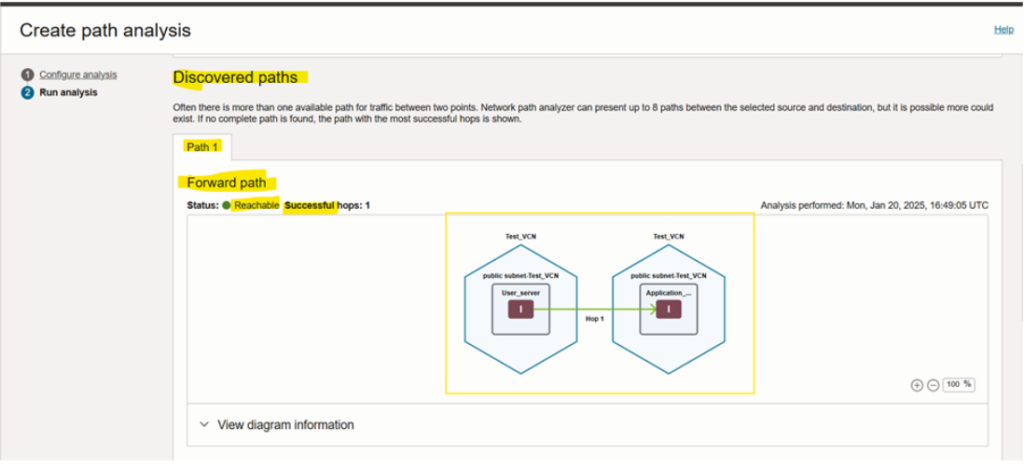
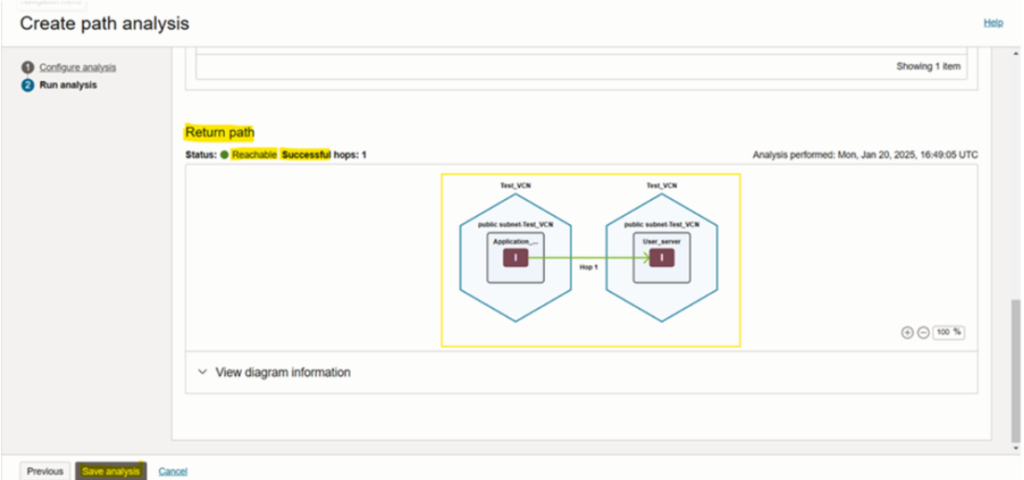
Step 10: Again Run Analysis
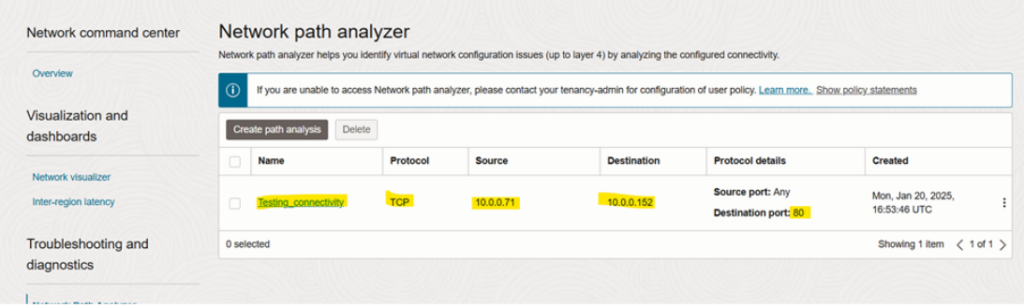
Now the connection is happen and both server can connect to each other
Hope It Helped!!